How do I post a single or recurring open shift?
Learn how to publish unfilled shifts for nurses and medical staff with specific units, roles, and weekly recurring patterns.
What You Need Before Starting
- You must be signed in as an Admin or Coordinator.
- At least one healthcare facility must be configured in your Foundation setup.
Step-by-Step Instructions
Open the Scheduling Calendar
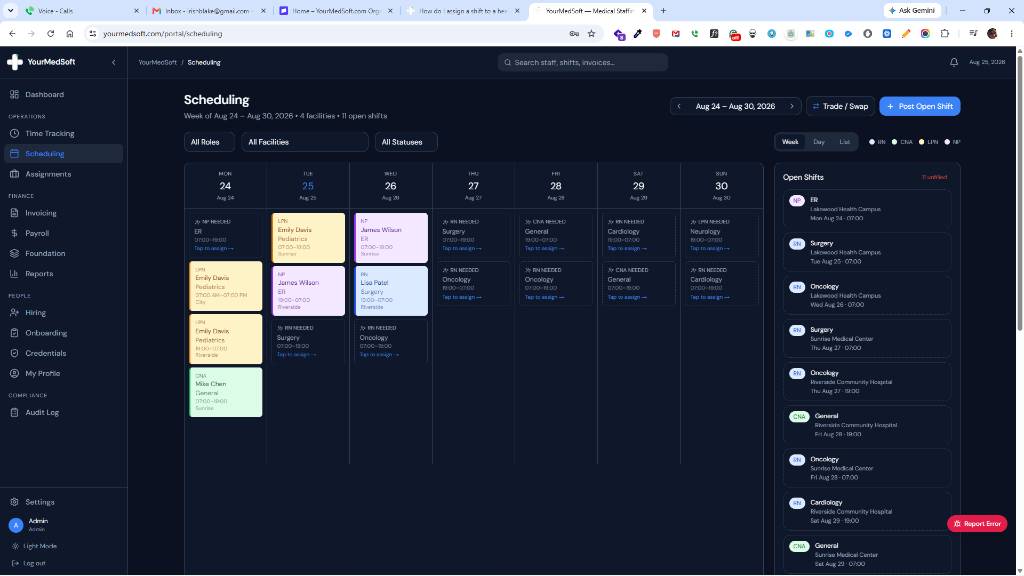
Navigate to the Scheduling page from the sidebar menu or click the "Post Shift" button on your Operations Dashboard.
Master scheduling calendar displaying color-coded shifts by clinical role and open shifts.
Launch the Post Shift Form
Click the blue "Post Open Shift" button in the upper right header to open the scheduling modal.
Select Date, Time, and Facility
Choose the shift date, start time (e.g., 07:00 AM), end time (e.g., 07:00 PM), and select the target facility from the dropdown.
Pick Clinical Role and Specialty
Select the required clinical license (RN, LPN, CNA, NP, MD) and specialty unit (e.g., ICU, Emergency, Med/Surg, NICU).
Enable Weekly Recurrence (Optional)
Check "Repeat Weekly" and enter the number of weeks (2 to 12 weeks) if you need the shift to automatically repeat across future schedules.
Toggle Staff Broadcast Notification
Leave the "Broadcast email & in-app alert to all active clinicians" box checked if you want the system to automatically alert all matching qualified workers via instant mobile notification and email.
Submit and Publish
Review the details, add any special instructions in the Notes box, and click "Post Shift". The shift immediately appears on the calendar in an unfilled state and alerts are dispatched.
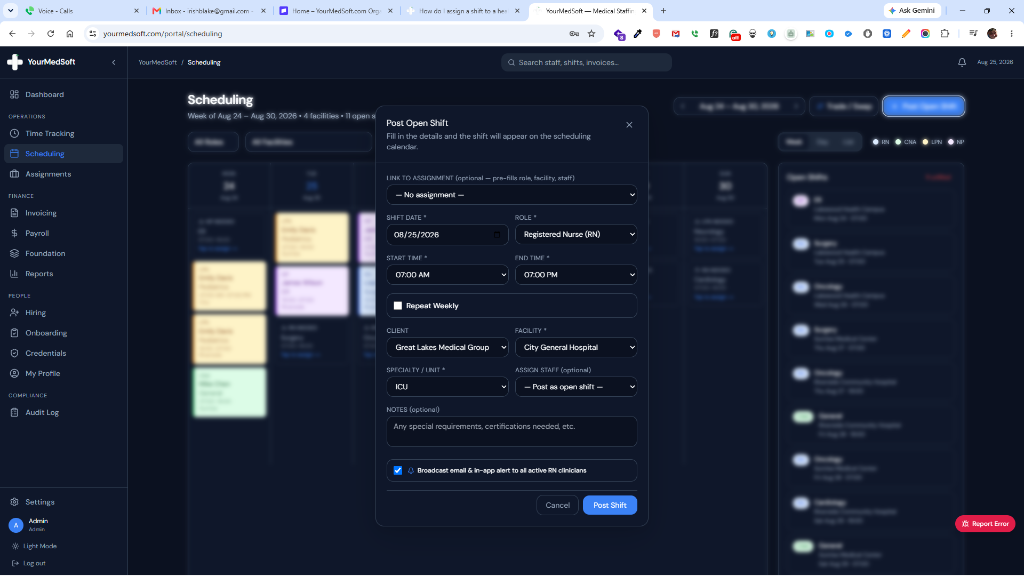
Post Shift Modal showing date, time, clinical role, weekly recurrence, and broadcast notification options.
Pro-Tips & Best Practices
- If you have an active contract placement, select "Link to Assignment" at the top of the form to auto-fill the role, facility, and assigned clinician in one click.
- Shifts posted as open will be highlighted with dashed borders on the calendar so you can spot unfilled coverage immediately.
- The broadcast alert notifies only active clinicians matching the selected clinical role (e.g., all active RNs for an RN shift).
Frequently Asked Questions & Troubleshooting
Can I assign a nurse immediately while posting?
Yes. In the "Assign Staff" dropdown, select an available clinician of the matching role. If left blank, the shift will be posted as open for later assignment.
What happens if the shift date conflicts with an assignment contract?
The system will display a yellow warning alert notifying you if the shift falls outside the approved start and end dates of the linked contract.
Was this guide helpful?
Your feedback helps us continuously improve our documentation.