How do I upload and manage clinician licenses and certifications?
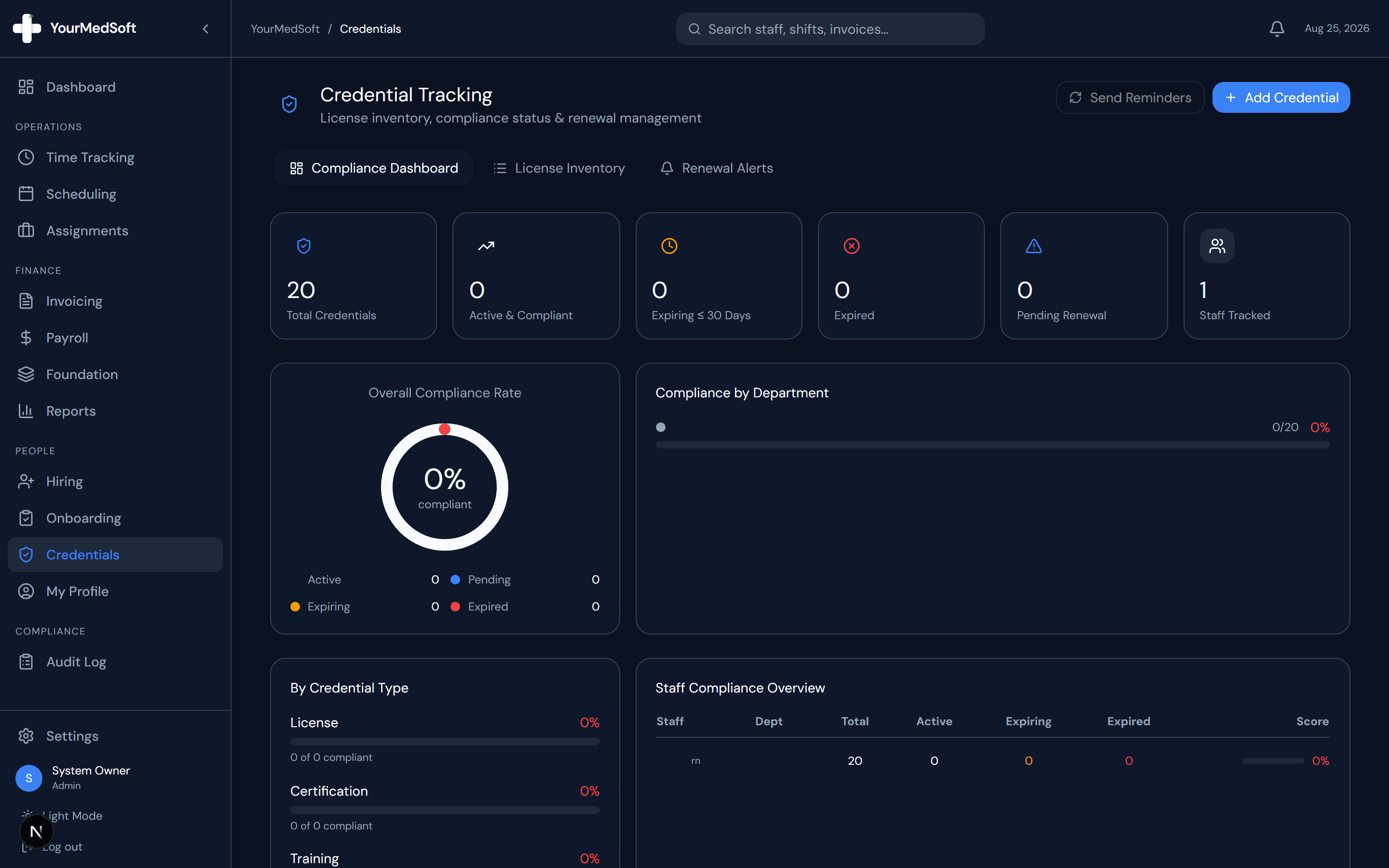
Upload state nursing licenses, BLS/ACLS certificates, background checks, and track issuing bodies with expiry dates.
What You Need Before Starting
- Document PDF or image file ready on your computer or phone.
Step-by-Step Instructions
Open Credentials Module
Click "Credentials" in the navigation sidebar, or open "My Profile > Credentials" if you are a clinician uploading your own documents.
Click Add Credential
Click the "+ Add Credential" button in the top right header.
Select Staff Member & Category
Choose the staff member and select the credential category (License, Certification, Training, or Background Check).
Enter Credential Details
Fill in the Credential Name (e.g., "Registered Nurse State License"), Issuing Body (e.g., "Texas Board of Nursing"), and License Number.
Specify Issue and Expiration Dates
Enter the valid Expiry Date. This date powers automated compliance calculations and 30/60/90-day renewal alerts.
Attach File and Save
Click "Upload Document" to select your PDF or photo, then click "Save Credential". The document is safely stored in encrypted cloud storage.
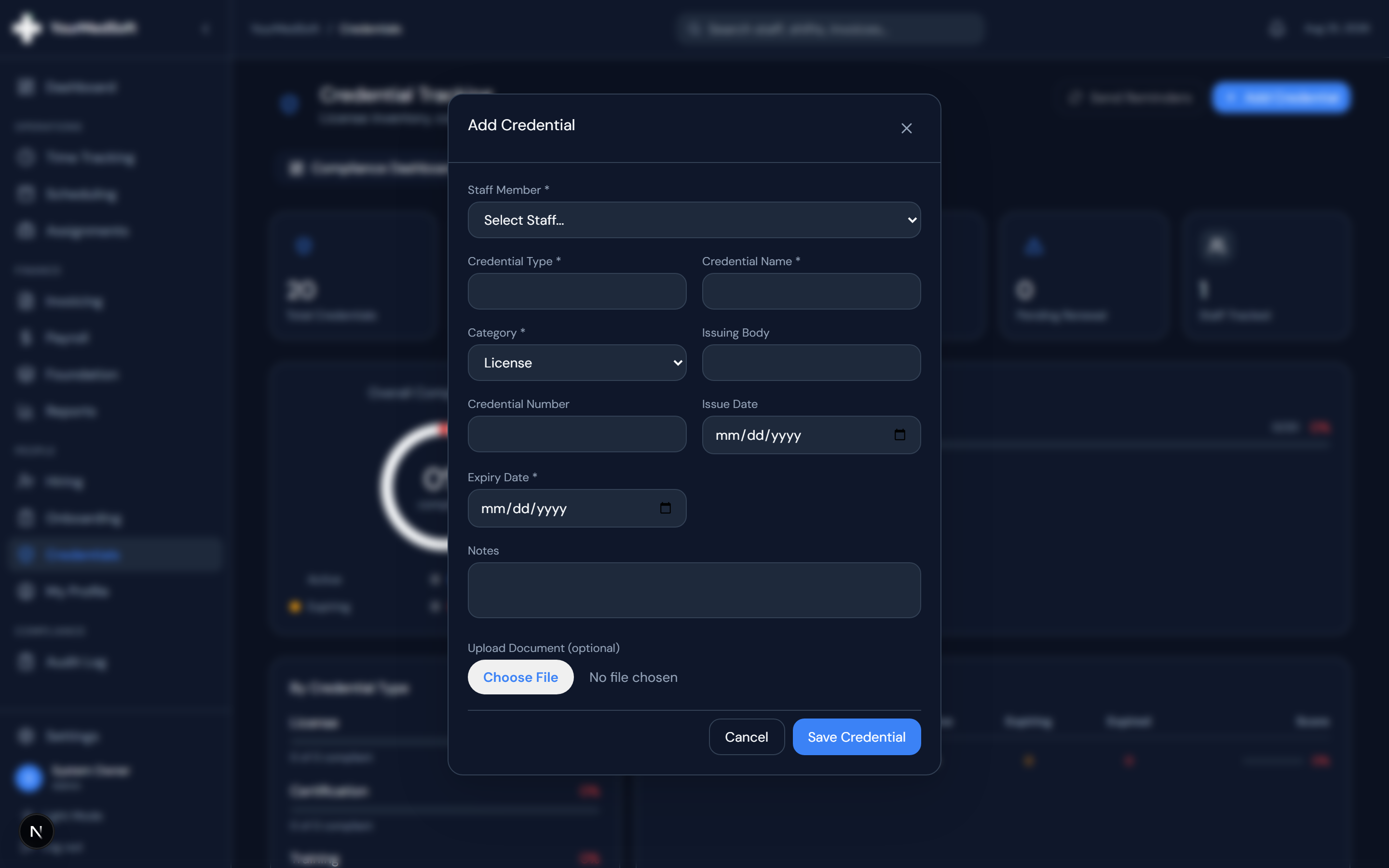
Document upload and certification entry modal with expiry date configuration.
Pro-Tips & Best Practices
- Uploading clear, high-resolution scans ensures facility auditors can verify license numbers without delays.
- Setting accurate expiration dates enables automated reminders before clinicians are blocked from shifts.
Frequently Asked Questions & Troubleshooting
What file formats are supported?
PDF, JPG, PNG, and HEIC document files up to 25MB are supported.
Was this guide helpful?
Your feedback helps us continuously improve our documentation.