How do I filter and navigate the scheduling calendar?
Use multi-criteria filters, switch between weekly periods, and use the mobile touch swipe view for fast schedule audits.
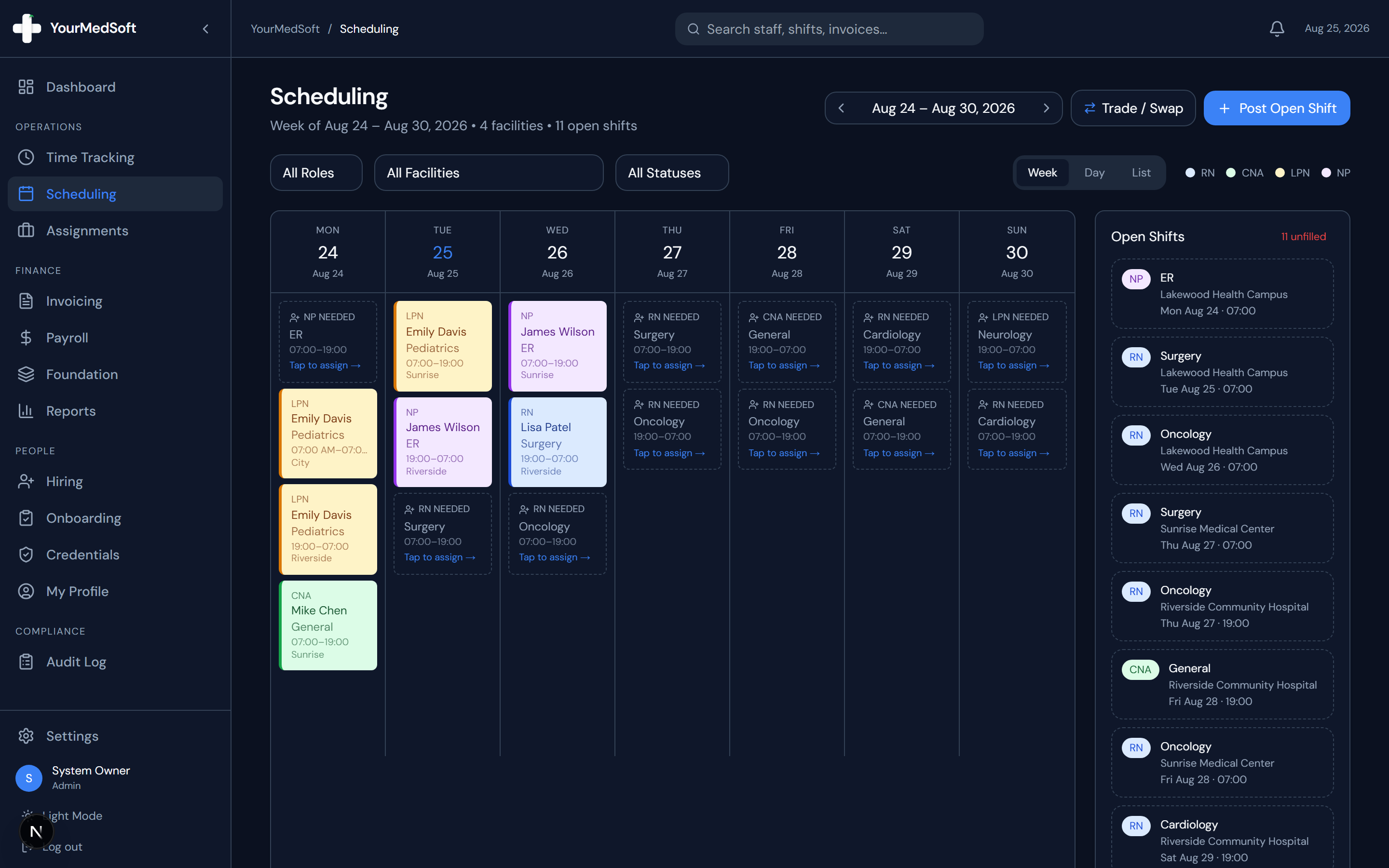
Step-by-Step Instructions
Navigate Between Weeks
Use the left and right arrows in the top header to jump forward or backward week by week. The current date range is always displayed in the header.
Filter by Clinical Role
Click the "All Roles" dropdown to filter the calendar view to only display specific credentials (e.g., RN only or CNA only).
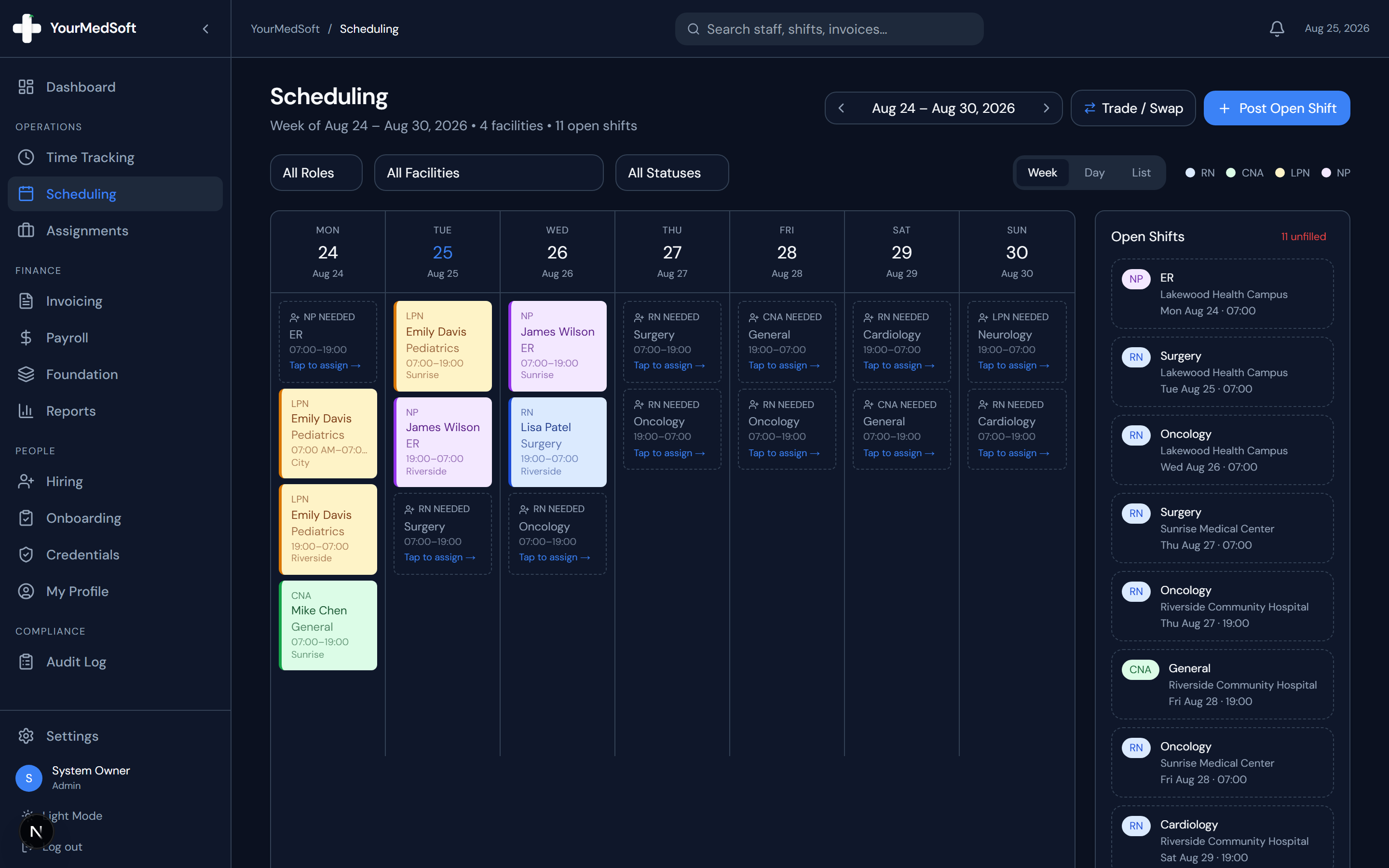
Multi-criteria scheduling toolbar with week navigator, role filters, and facility dropdowns.
Filter by Facility
Select a specific hospital or clinic from the "All Facilities" dropdown to view coverage for a single client location.
Filter by Status
Toggle between "All Statuses", "Open", or "Assigned" to instantly see unfilled holes in your schedule.
Using Mobile Swipe Navigation
On mobile phones and tablets, tap any day pill (Mon–Sun) or swipe left/right across the screen to smoothly browse shifts day by day.
Pro-Tips & Best Practices
- A blue pill indicator highlights today’s date so you can always re-orient yourself in one glance.
- Shifts with scheduling conflicts display a red warning outline around the card.
Frequently Asked Questions & Troubleshooting
Can facility clients view schedules for other hospitals?
No. Facility Client user accounts are restricted by security rules to only view shifts attached to their own specific facility.
Was this guide helpful?
Your feedback helps us continuously improve our documentation.