How do I track applicants through the recruitment pipeline?
Review incoming resumes, assign star ratings, add candidate notes, and move applicants through Kanban hiring stages.
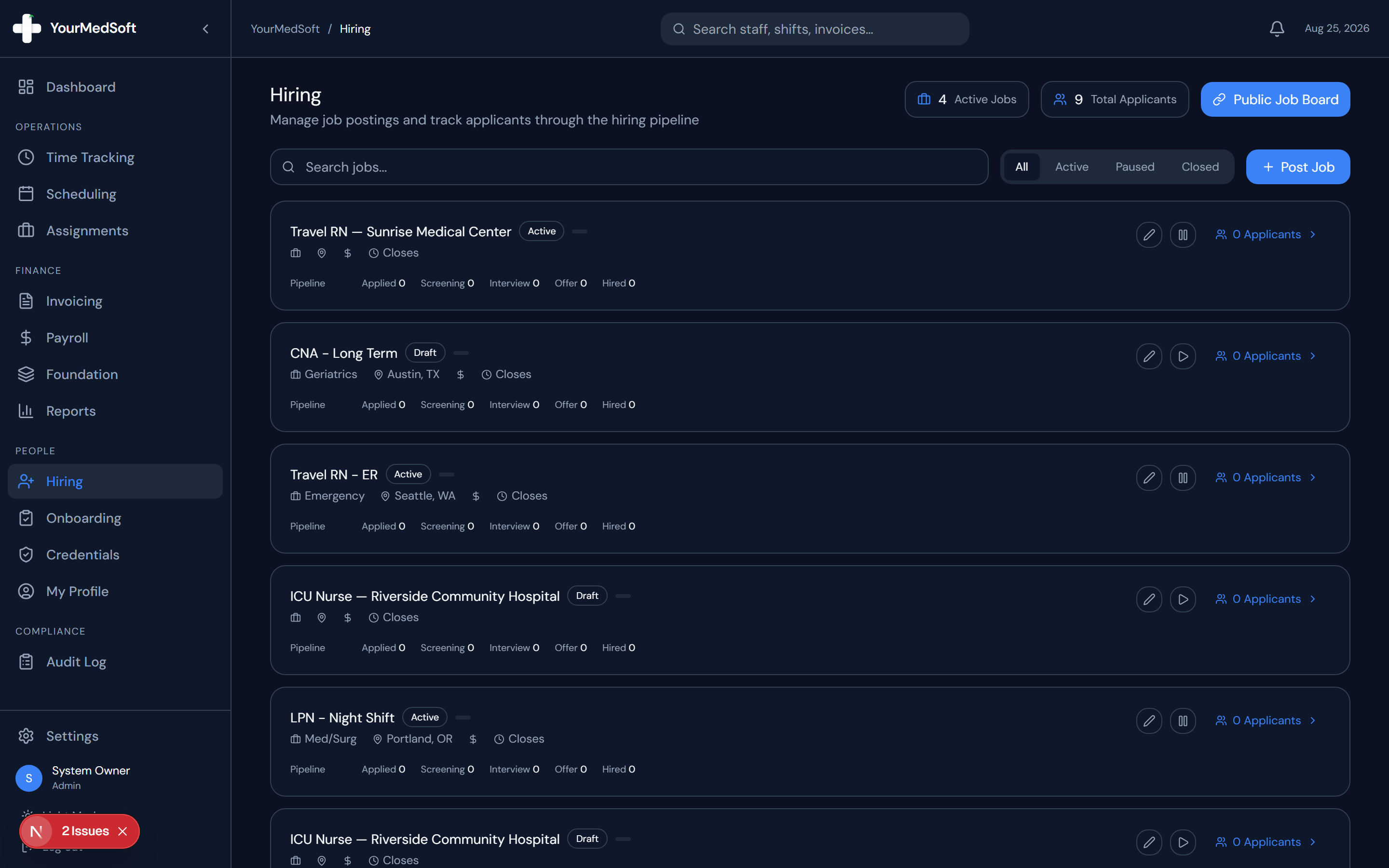
What You Need Before Starting
- Published job postings with incoming applicant submissions.
Step-by-Step Instructions
Open the Applicant Pipeline
In the Hiring module, click "Pipeline" in the view switcher or click "View Pipeline" on any specific job posting card.
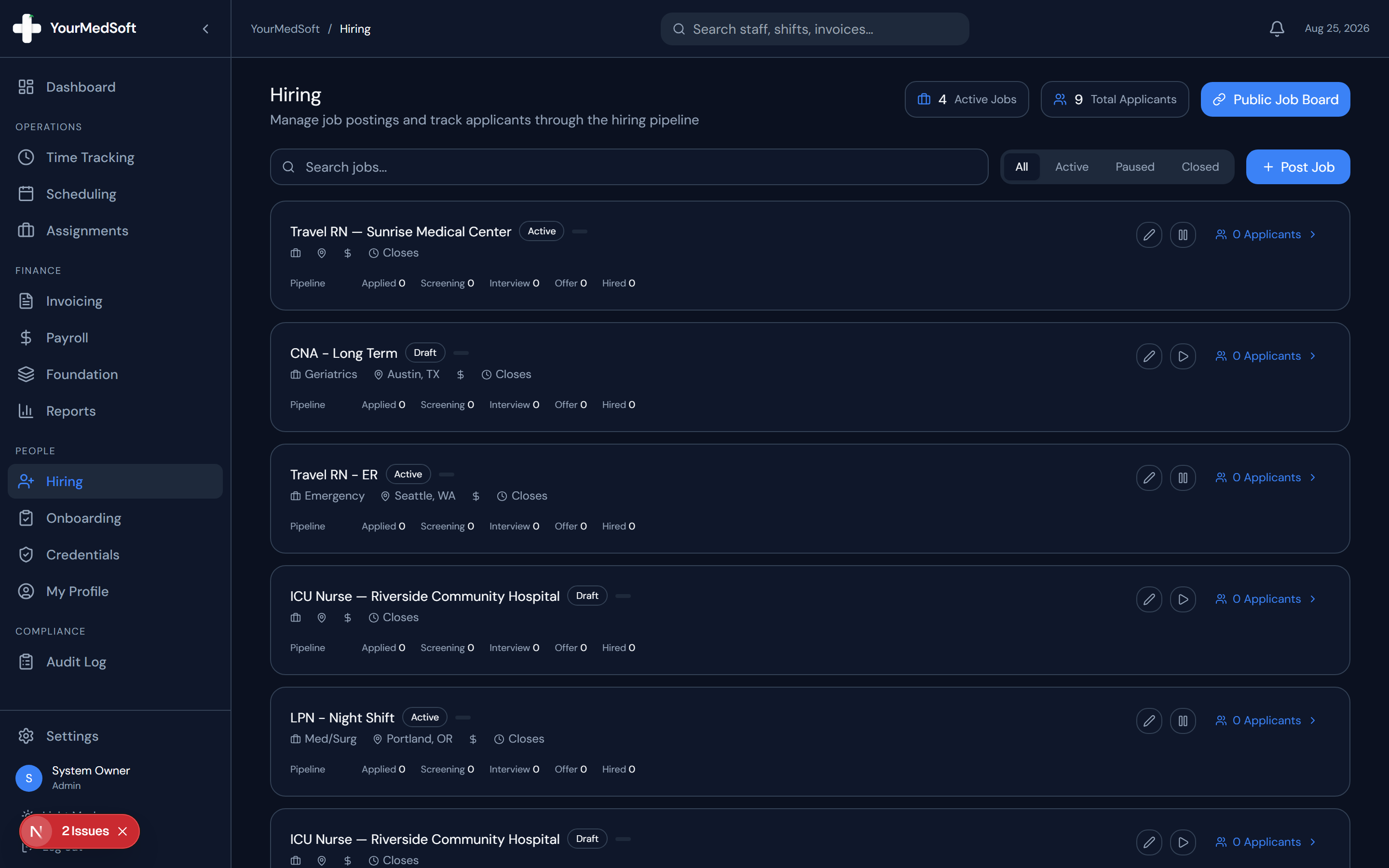
Kanban hiring pipeline organizing candidates across Applied, Interview, Background Check, and Hired stages.
Review Kanban Stages
Candidates are organized across stages: Applied → Phone Screen → Interview → Background Check → Offer → Hired / Rejected.
Inspect Candidate Details
Click on any candidate card to view their contact info, clinical role, years of experience, resume attachment, and coordinator notes.
Update Candidate Stage & Rating
Drag and drop the candidate card to the next stage, or select the stage from the dropdown menu inside the candidate profile. Assign a star rating (1–5 stars) based on your interview.
Pro-Tips & Best Practices
- Use custom tags like "Compact License" or "Immediate Start" to quickly categorize your top clinical candidates.
Frequently Asked Questions & Troubleshooting
Do applicants receive updates when their stage changes?
Coordinators can send direct email updates to candidates directly from the candidate details modal.
Was this guide helpful?
Your feedback helps us continuously improve our documentation.