How do I convert a hired applicant directly into active staff?
Automatically transfer an applicant’s contact details, role, and specialty into your active clinician roster with compensation settings in one click.
What You Need Before Starting
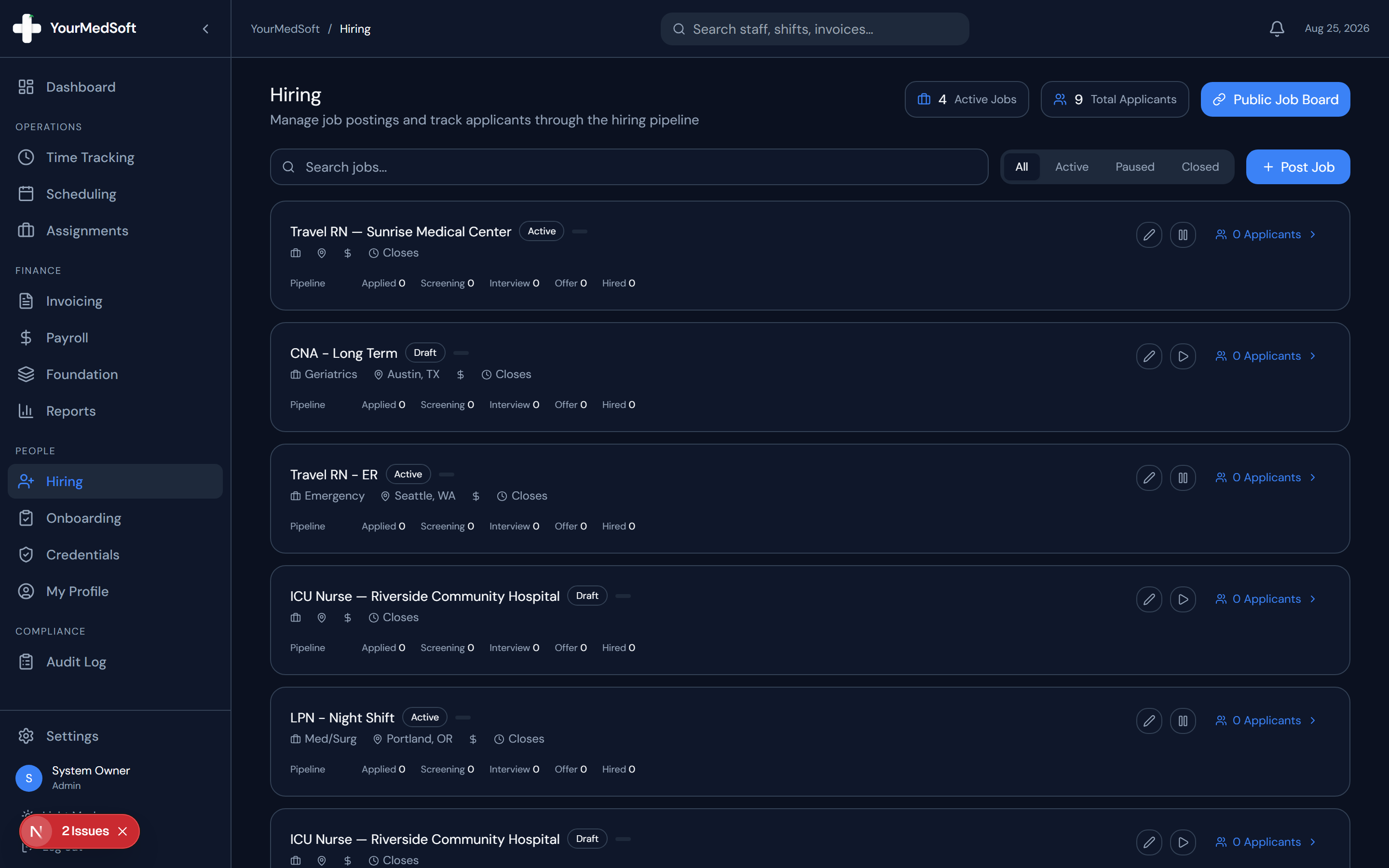
- A candidate in the "Offer" or "Hired" stage in your hiring pipeline.
Step-by-Step Instructions
Open Candidate Profile
In the Applicant Pipeline, click on the candidate who has accepted your job offer.
Click Convert to Staff
Click the green "Convert to Staff" button in the candidate action bar.
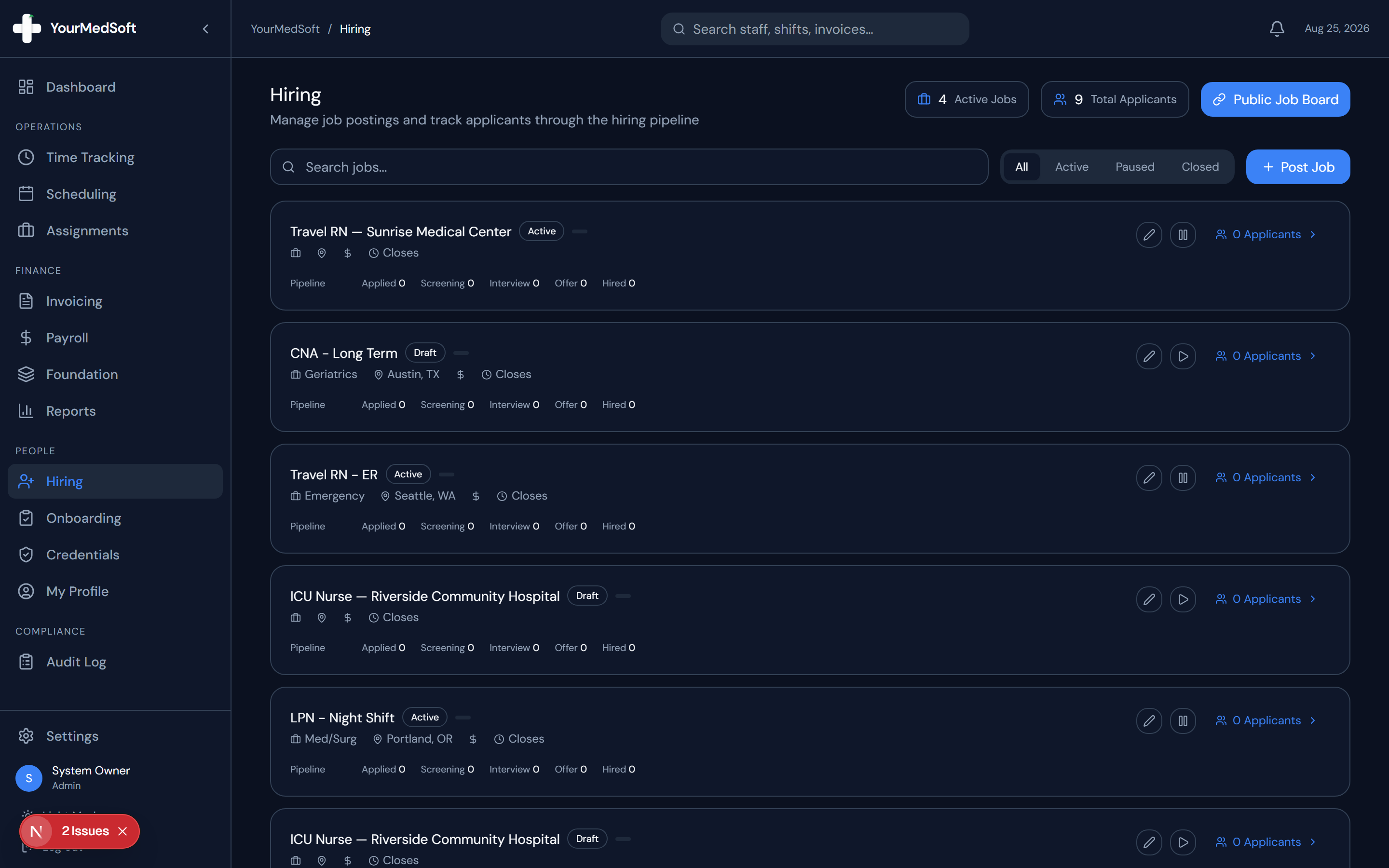
Onboarding pipeline and candidate conversion to active clinician status.
Configure Placement Terms
The conversion modal opens with pre-filled name, email, and phone. Select the Employment Type (Full-time, Contract, Per Diem), Specialty, Department, and agreed Base Pay Rate ($/hr).
Confirm Conversion
Click "Confirm Conversion". The system creates an active staff profile, grants portal access, and updates the candidate stage to Hired.
Pro-Tips & Best Practices
- Converting directly eliminates double data entry and ensures email addresses match across hiring and payroll.
Frequently Asked Questions & Troubleshooting
Does the converted clinician automatically receive portal access?
Yes. They will receive an automated invitation email to log into the portal and complete their credential uploads.
Was this guide helpful?
Your feedback helps us continuously improve our documentation.