How do I configure receiving payment methods (Stripe, PayPal, Bank Wire) for invoices?
Set up your agency payment receiving details including Stripe online checkout links, PayPal business links, ACH/Bank wire instructions, and check remittance addresses.
What You Need Before Starting
- Administrator or Manager permissions in YourMedSoft.
- Your agency banking details or Stripe/PayPal account links.
Step-by-Step Instructions
Open Settings or Invoicing Payment Setup
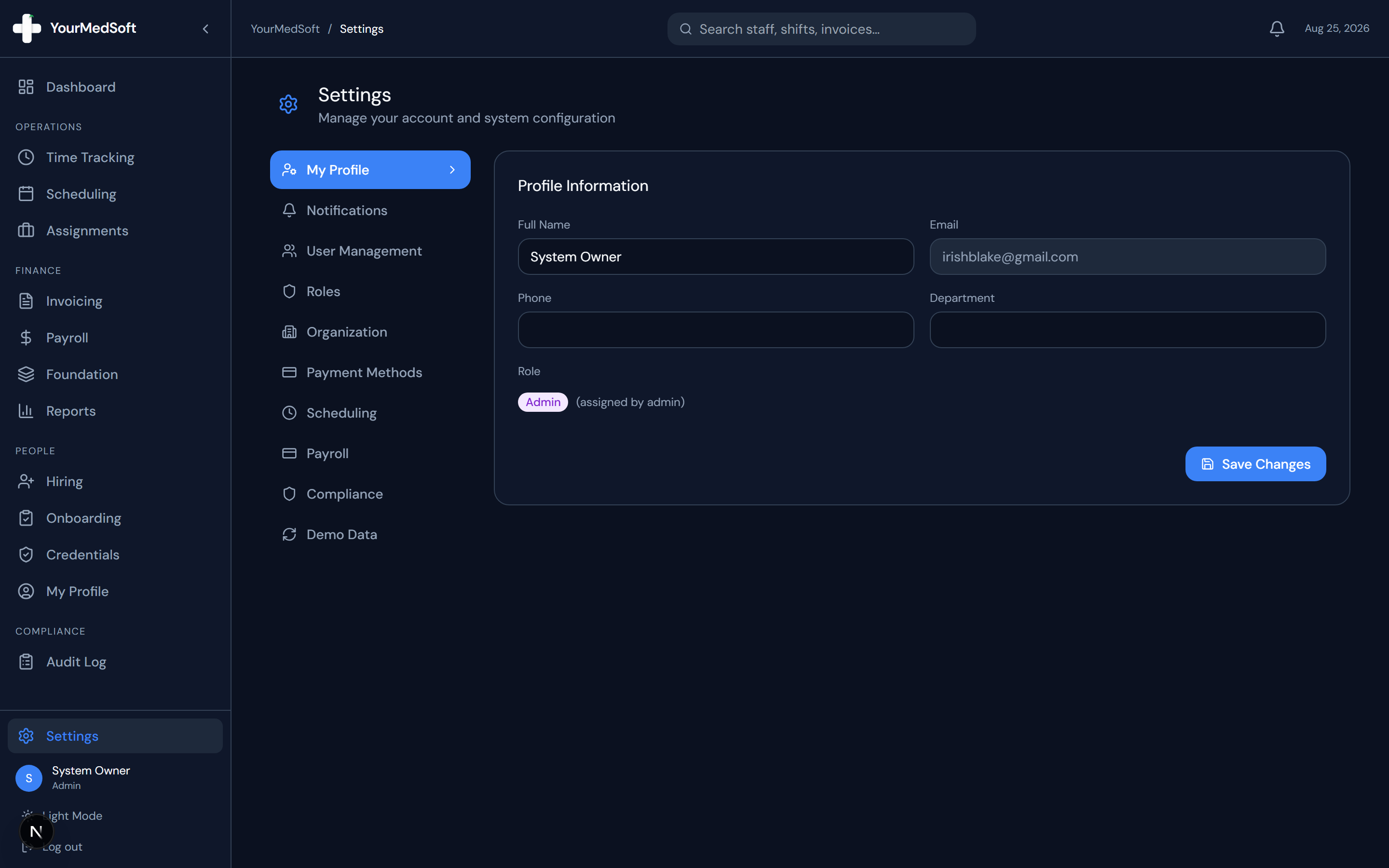
Navigate to Settings > Payment Methods from the sidebar, or click the "Payment Setup" button in the Invoicing header.
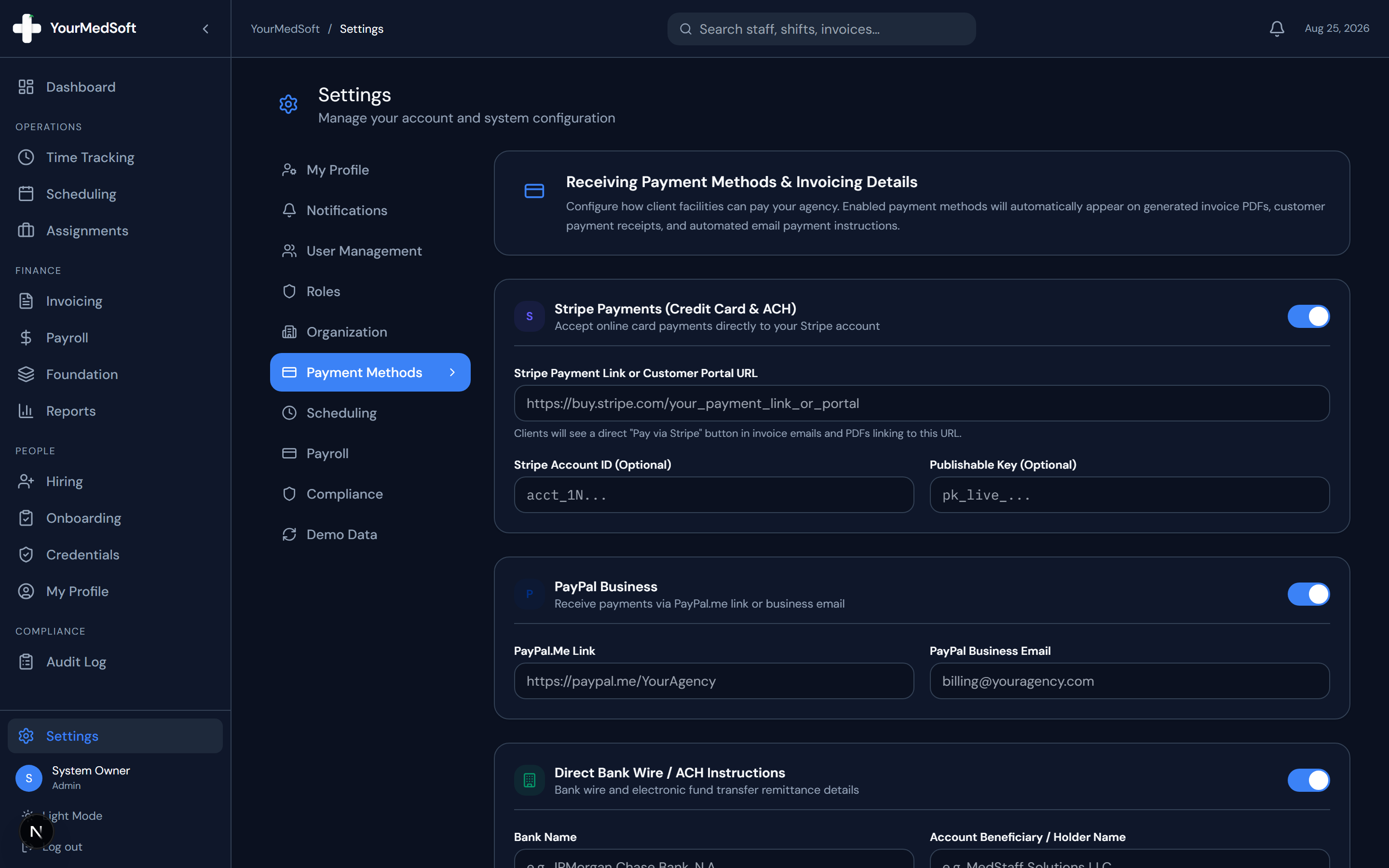
Payment Methods manager with Stripe, PayPal, ACH/Bank Wire, and Check Remittance forms.
Configure Stripe Online Payments
Toggle on Stripe Payments. Paste your direct Stripe Payment Link or Customer Portal URL (e.g. https://buy.stripe.com/...). Optionally enter your Stripe Account ID and Publishable Key.
Configure PayPal Business
Toggle on PayPal and enter your PayPal.me link (e.g. https://paypal.me/YourAgency) or your business PayPal email address.
Enter Direct Bank Wire & ACH Transfer Instructions
Toggle on Direct Bank Wire. Enter your Bank Name, Beneficiary Account Name, 9-digit Routing/ABA Number, Account Number, Account Type (Checking/Savings), and SWIFT/BIC code for electronic remittances.
Set Check Remittance & Payment Terms
Toggle on Check Remittance to provide a physical mailing address and "Make Checks Payable To" instructions, along with your default net payment terms note.
Save Payment Configuration
Click "Save Payment Methods". All enabled payment options will automatically appear on generated invoice PDFs and in the automated payment instructions sent with invoice emails.
Pro-Tips & Best Practices
- When client facilities receive their invoice email, they will see direct "Pay Online via Stripe" and "Pay via PayPal" buttons, plus complete bank wire routing information.
- You can preview how payment methods appear on any draft invoice in the Invoice Builder summary sidebar.
Frequently Asked Questions & Troubleshooting
Are bank account details visible to all portal users?
No. Payment method configurations are restricted to Administrators and Managers under Settings > Payment Methods.
Can I disable a payment method without deleting the account information?
Yes. Simply toggle the switch off for that payment method card and click Save. The information will be stored but hidden from client invoices.
Was this guide helpful?
Your feedback helps us continuously improve our documentation.