How do I calculate payroll, review deductions, and export for Gusto/ADP?
Run payroll calculations from approved hours, verify overtime and tax withholdings, and generate standardized CSV files for external payroll processors.
What You Need Before Starting
- Approved timesheets for the target pay period.
- Staff pay rates configured on worker profiles or Foundation pay rules.
Step-by-Step Instructions
Open Payroll Module
Click "Payroll" in the left sidebar navigation.
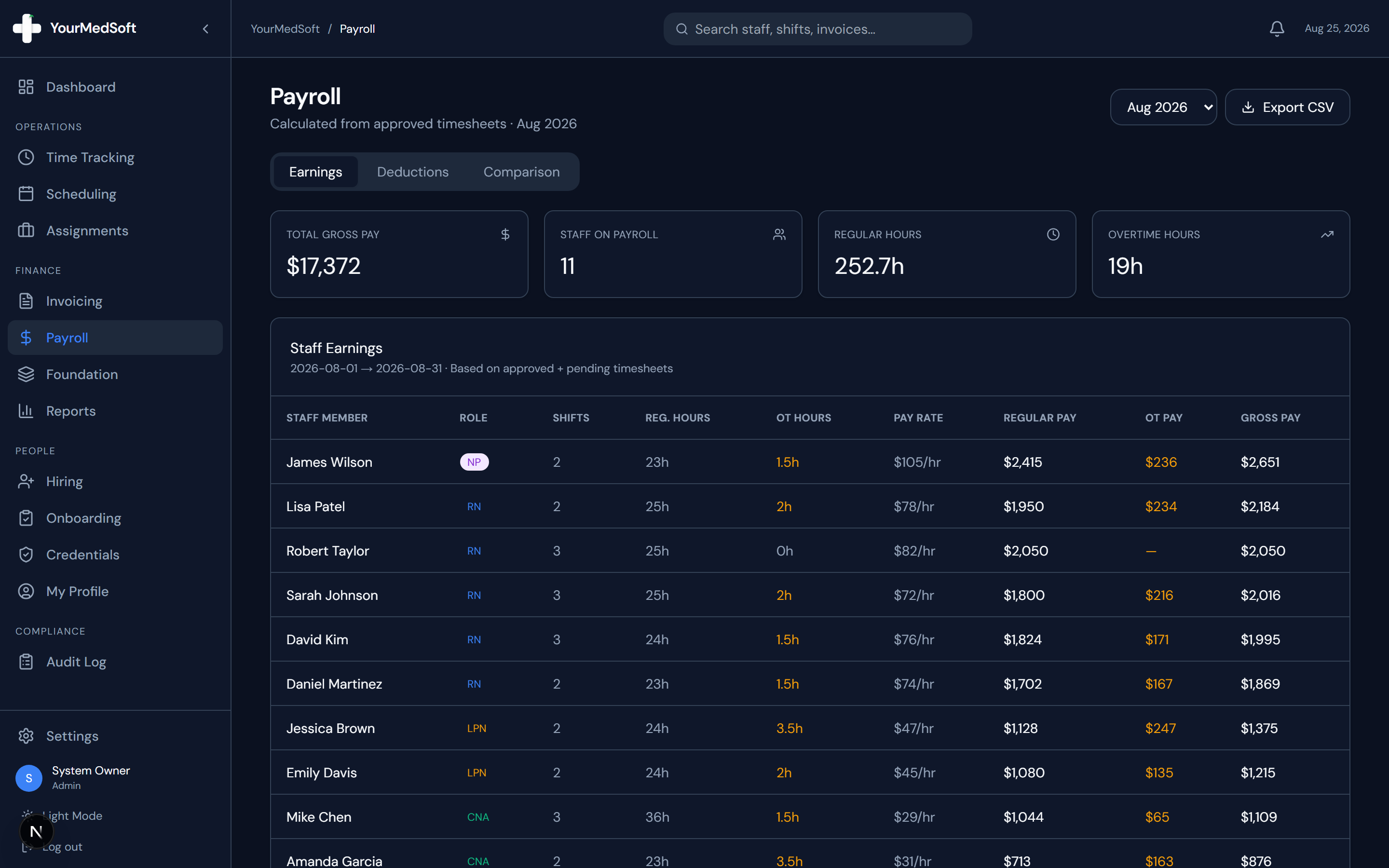
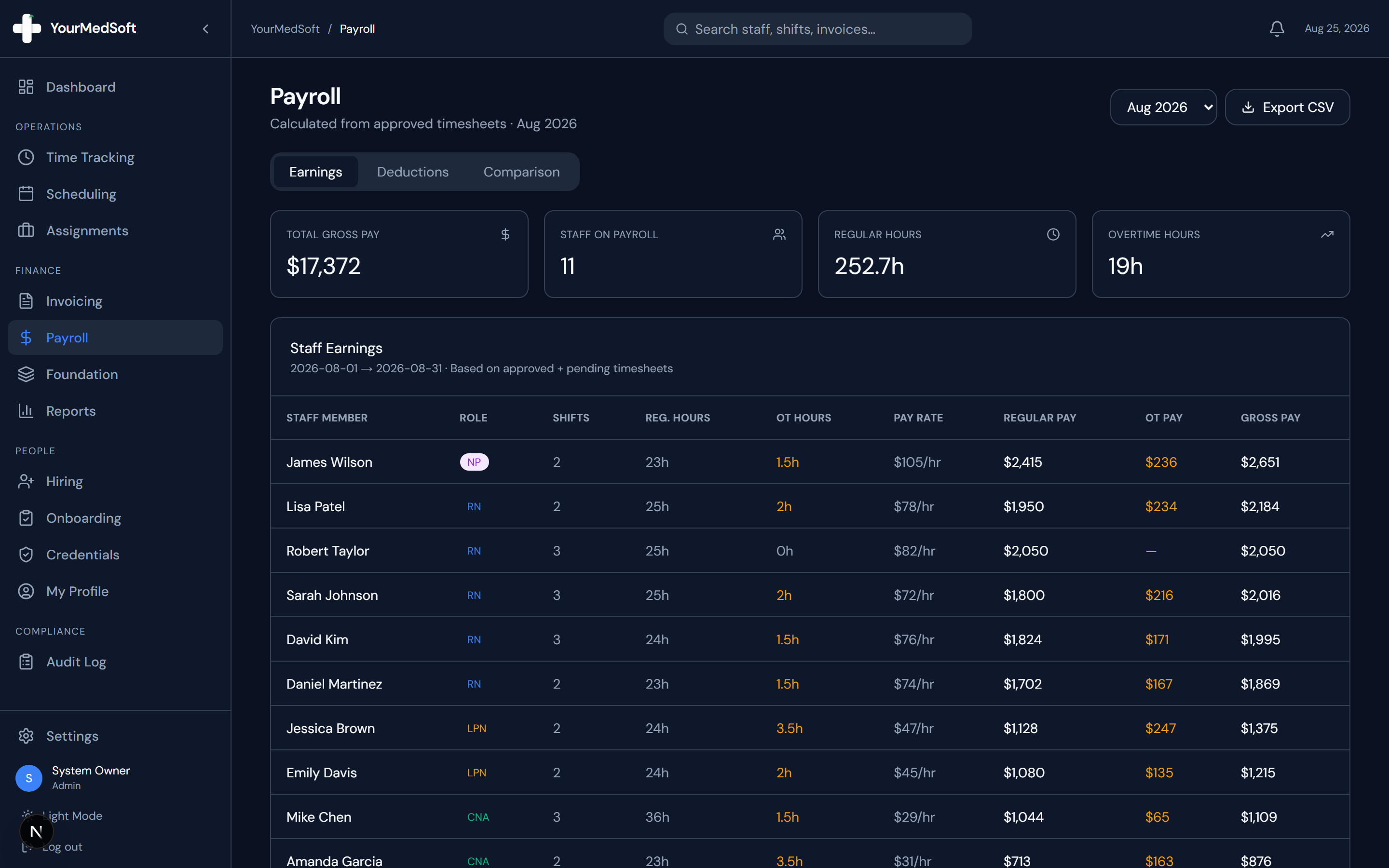
Staff payroll earnings calculator with hourly pay rates, overtime gross pay, and export action.
Select Pay Period
Use the period selector dropdown in the top header to choose your active payroll cycle (Monthly, Bi-weekly, or Weekly).
Review Staff Earnings Breakdown
The "Staff Earnings" tab displays each clinician with their total shifts, regular hours, overtime hours, hourly pay rate, regular pay, OT pay, and calculated gross pay.
Review Tax Deductions & Withholdings
Switch to the "Deductions" tab to review estimated withholding breakdowns for Federal Tax, State Tax, Social Security (6.2%), Medicare (1.45%), and Net Pay.
Export Standard CSV for Payroll Processor
Click the "Export CSV" button in the header. YourMedSoft generates a formatted CSV containing clinician first names, last names, regular hours, OT hours, pay rates, and locations ready for instant upload into Gusto, ADP, or QuickBooks Payroll.
Pro-Tips & Best Practices
- Overtime pay is calculated automatically using each clinician’s individual OT multiplier (default 1.5x) for hours worked beyond 8 hours per shift.
- Use the "Comparison" tab to compare total gross payroll expenses and clinician counts across the last 4 months.
Frequently Asked Questions & Troubleshooting
How do I change the default tax withholding rate?
Agency admins can adjust the effective tax rate in Settings > Payroll to match your state and local tax regulations.
Was this guide helpful?
Your feedback helps us continuously improve our documentation.