Invoicing & Client Billing2 min read
Admin
How do I monitor unpaid, overdue, and aging invoices?
Track accounts receivable health, filter invoices by payment status, and review 30/60/90+ day aging reports.
YourMedSoft · Invoicing & Client Billing
Step-by-Step Instructions
1
Review Invoice List Statuses
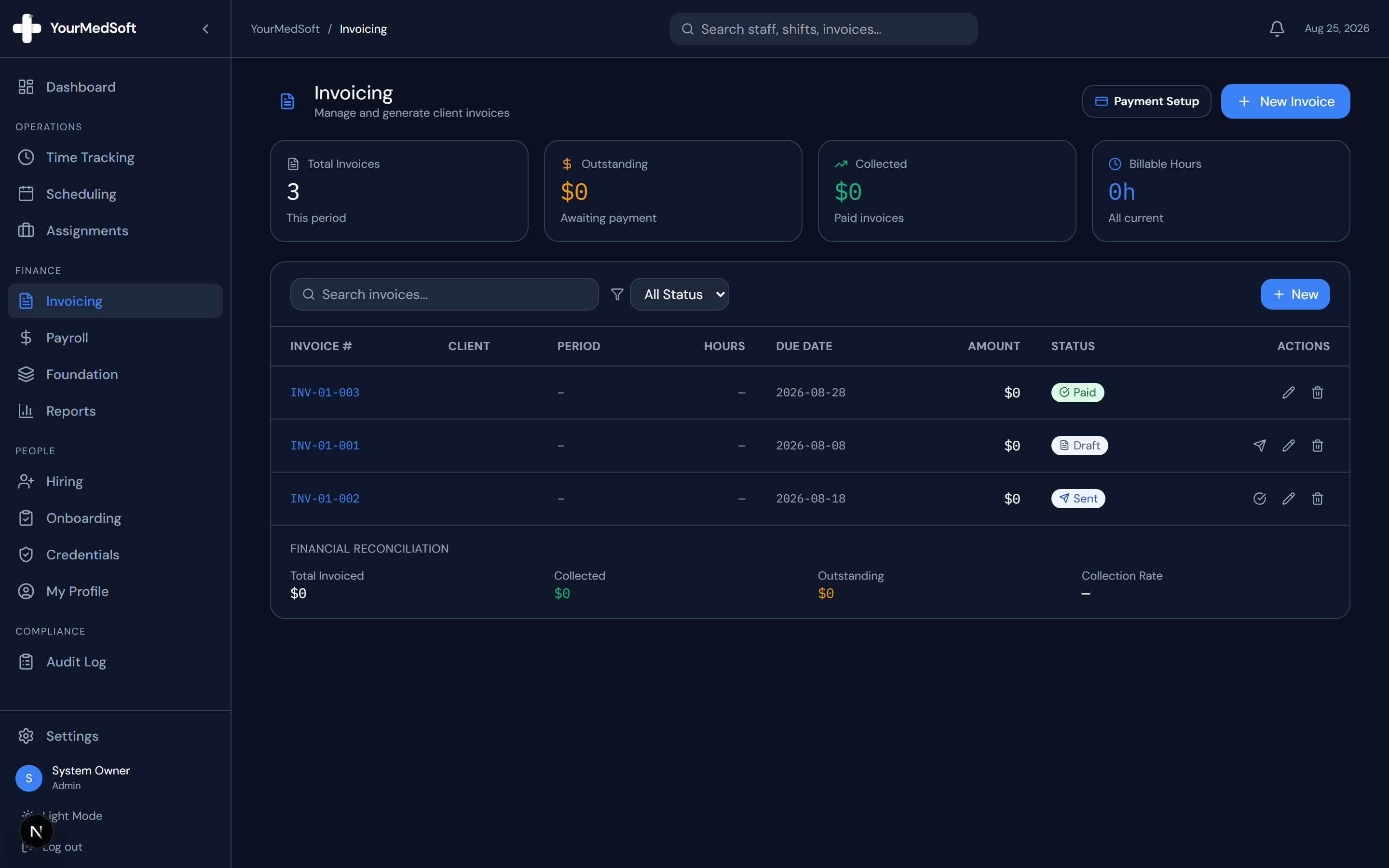
On the Invoicing page, review the color-coded status badges: Draft (Grey), Sent (Blue), Paid (Green), and Overdue (Red).
UI: Invoicing > Invoice List
Step 1 Preview
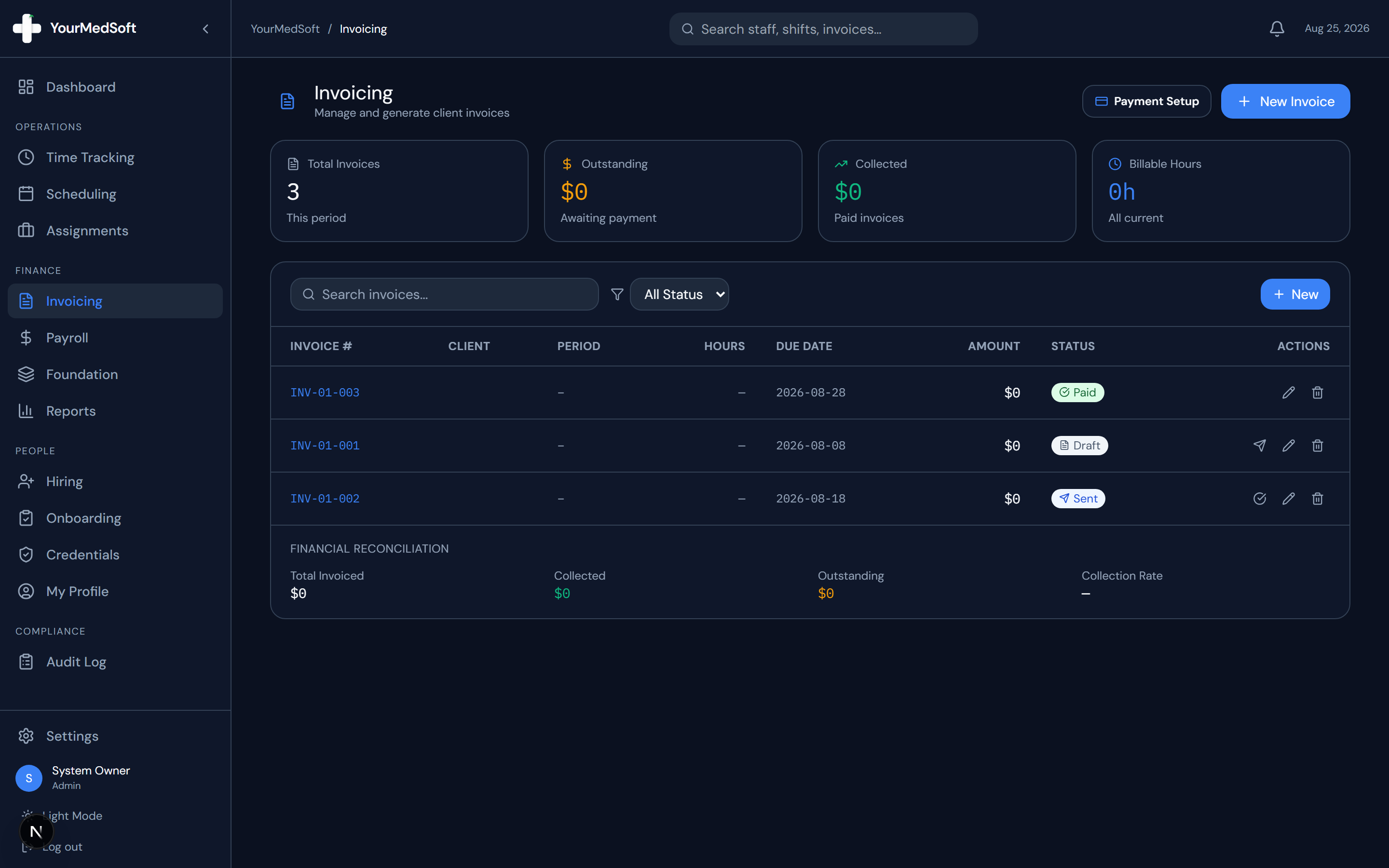
Invoice directory tracking sent invoices, payment statuses, and overdue accounts.
2
Filter by Status
Use the status filter dropdown in the table header to isolate "Overdue" invoices requiring follow-up.
3
Inspect the Invoice Aging Report
Navigate to Reports > Invoice Aging to view total outstanding balances grouped by age: Current (0–30 days), 31–60 days, 61–90 days, and 90+ days overdue.
UI: Sidebar > Reports > Invoice Aging
Pro-Tips & Best Practices
- The Revenue MTD widget on your Operations Dashboard displays current monthly collections vs. pending unbilled receivables in real time.
Frequently Asked Questions & Troubleshooting
How do I mark an invoice as paid when a check or ACH arrives?
In the Invoice List, click the actions menu on the invoice row and select "Mark as Paid".
Was this guide helpful?
Your feedback helps us continuously improve our documentation.
Previous GuideHow do I generate an invoice from approved timesheets?Next Guide How do I configure receiving payment methods (Stripe, PayPal, Bank Wire) for invoices?
Related Workflow Guides
Invoicing & Client Billing
Read guide How do I generate an invoice from approved timesheets?
Invoicing & Client Billing
Read guide How do I configure receiving payment methods (Stripe, PayPal, Bank Wire) for invoices?
Payroll & Deductions
Read guide