How do I create custom organizational roles and access tiers?
Build tailored role tiers beyond standard Admin/Manager (e.g., "Shift Coordinator", "Credentialing Specialist") with custom permission sets.
What You Need Before Starting
- Organization Admin permissions.
Step-by-Step Instructions
Open Roles Tab in Settings
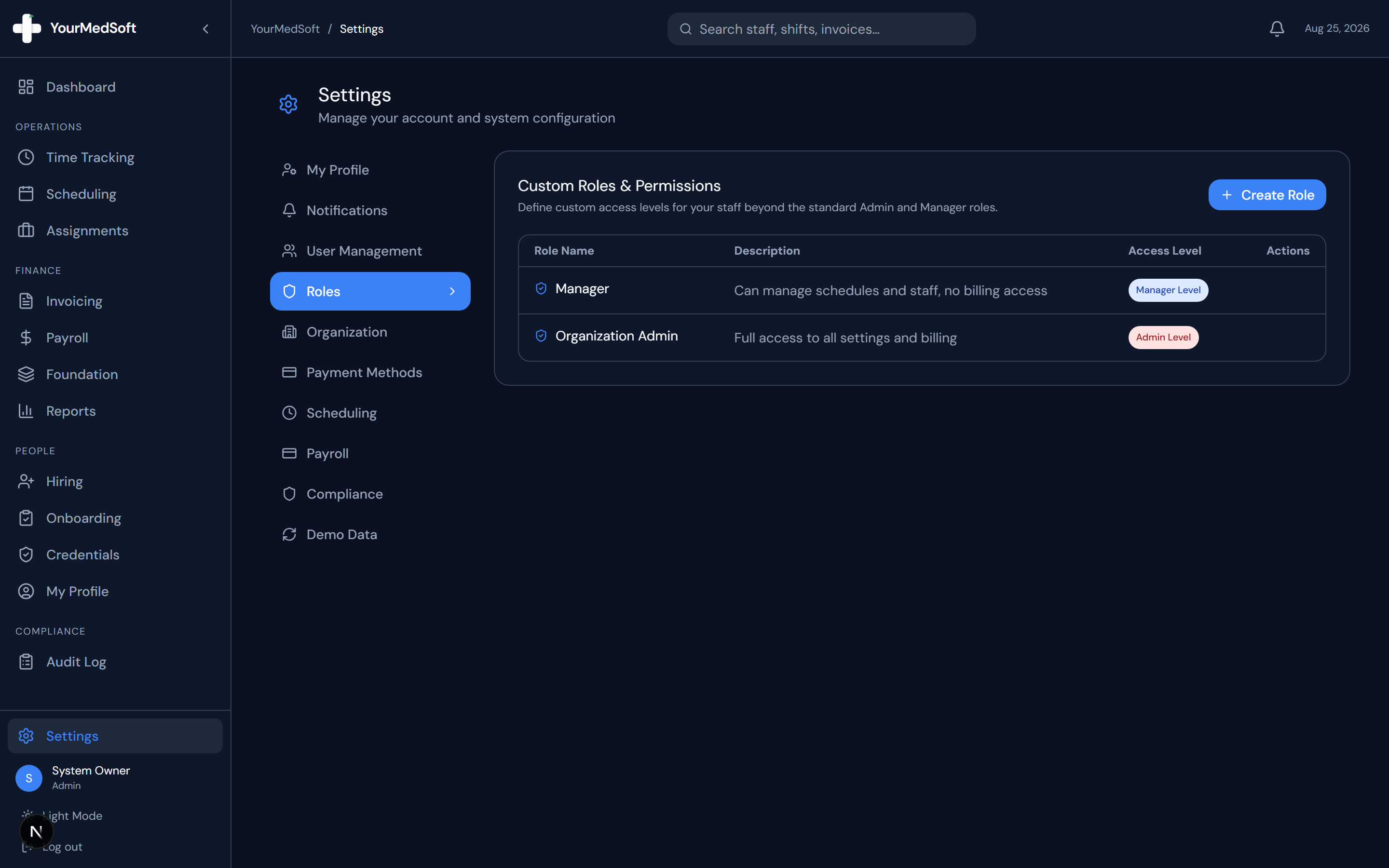
Navigate to Settings and click the "Roles" tab.
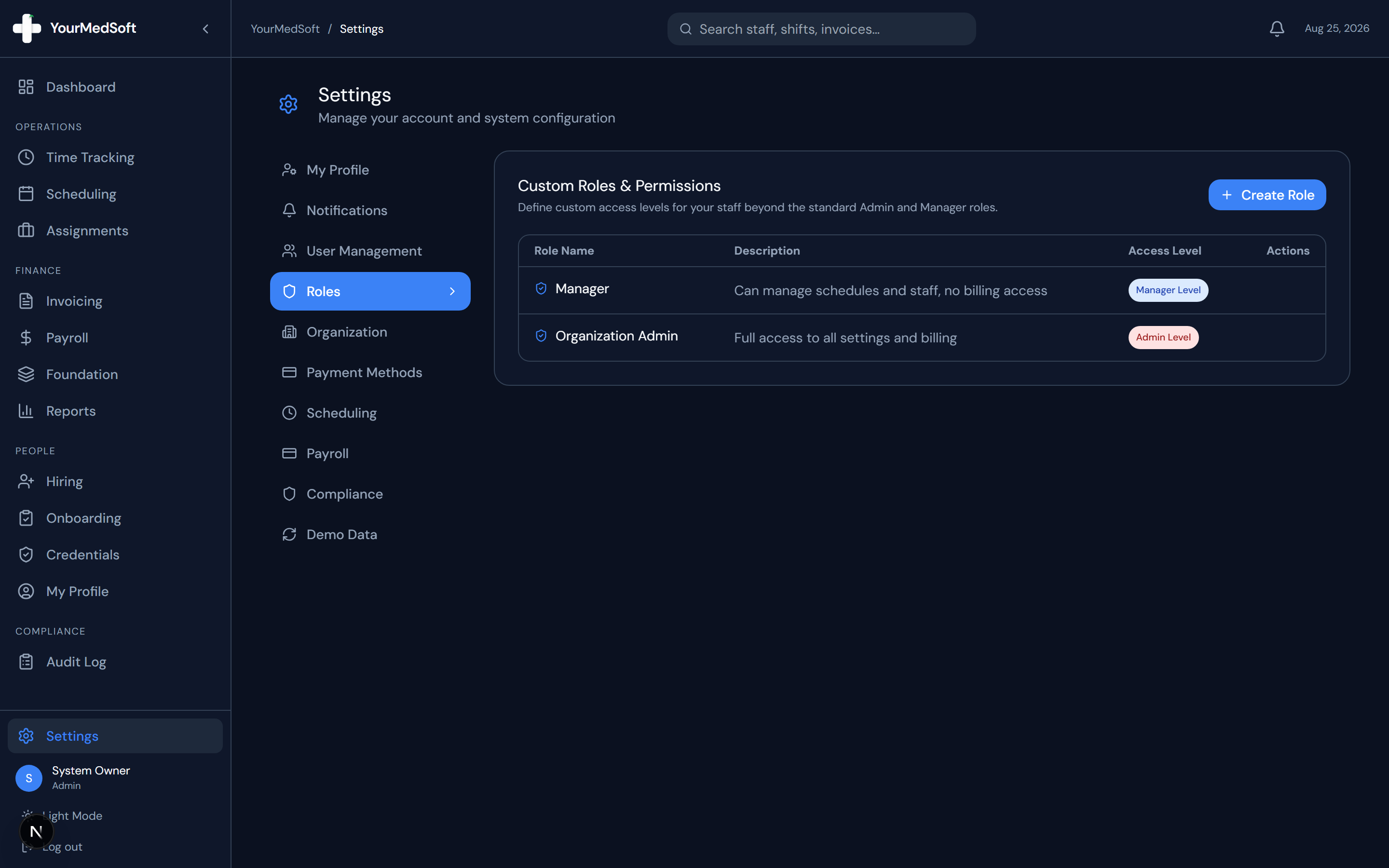
Roles and permissions management panel with access tier matrix.
Click Create Role
Click "+ Create Role" to start configuring a custom access level.
Enter Role Name and Description
Type a clear title (e.g., "Billing Clerk" or "Clinical Recruiter") and a brief summary of what this role is responsible for.
Select Base Permission Level
Choose the access baseline: Staff Level (can view own shifts/timesheets) or Manager Level (can manage schedules, credentials, and staff).
Save Role
Click "Save Role". The new custom role immediately becomes assignable to team members in User Management.
Pro-Tips & Best Practices
- Built-in system roles (Organization Admin and Manager) are protected and cannot be deleted.
Frequently Asked Questions & Troubleshooting
Can I edit the permission level of a custom role later?
Yes. Click the edit pencil icon next to any custom role in the Roles management table.
Was this guide helpful?
Your feedback helps us continuously improve our documentation.