How do I invite team members and assign system roles?
Send secure email invitations to agency coordinators, managers, recruiters, and clinicians with role-based access control.
What You Need Before Starting
- Admin permissions and available user seats under your agency plan.
Step-by-Step Instructions
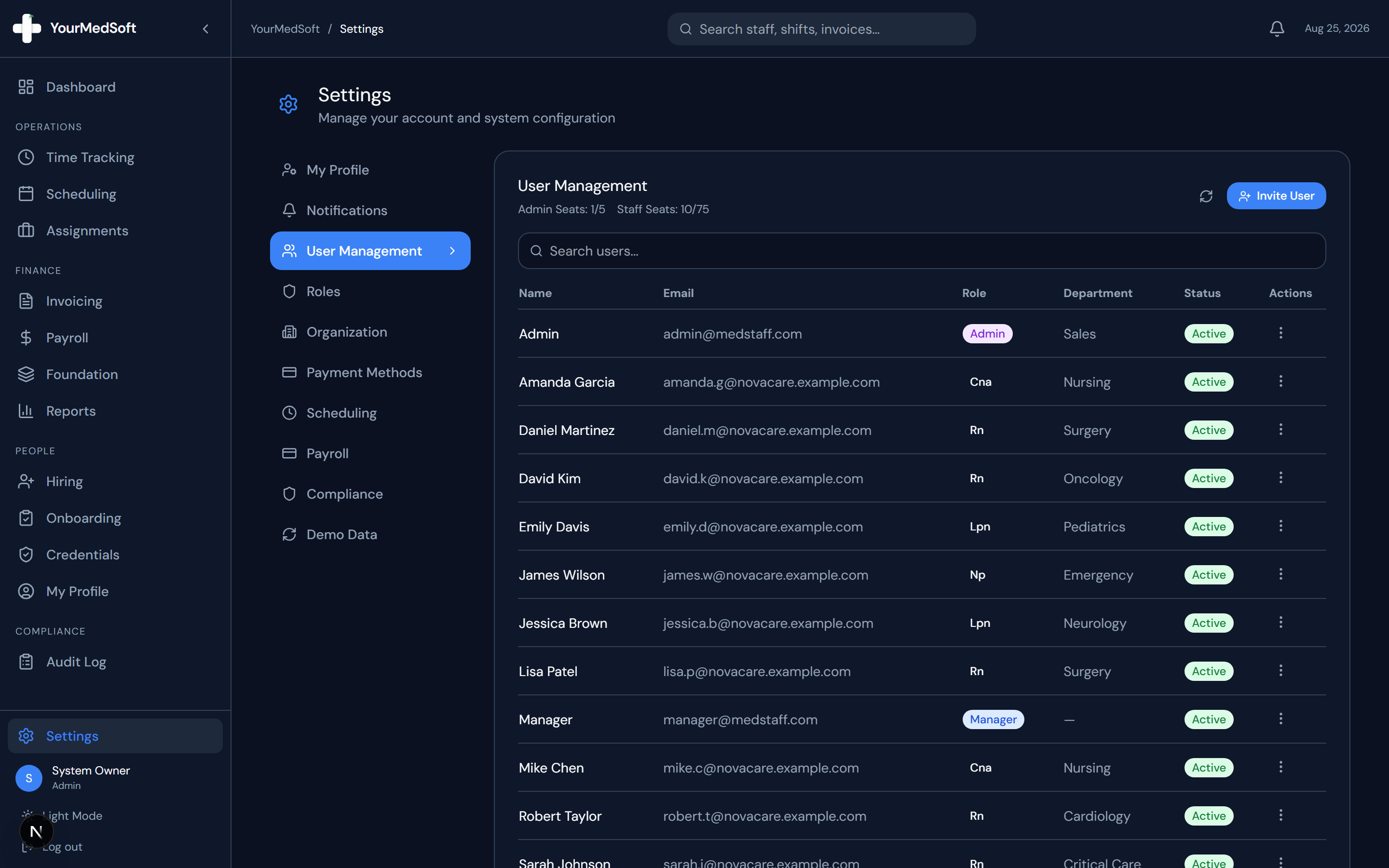
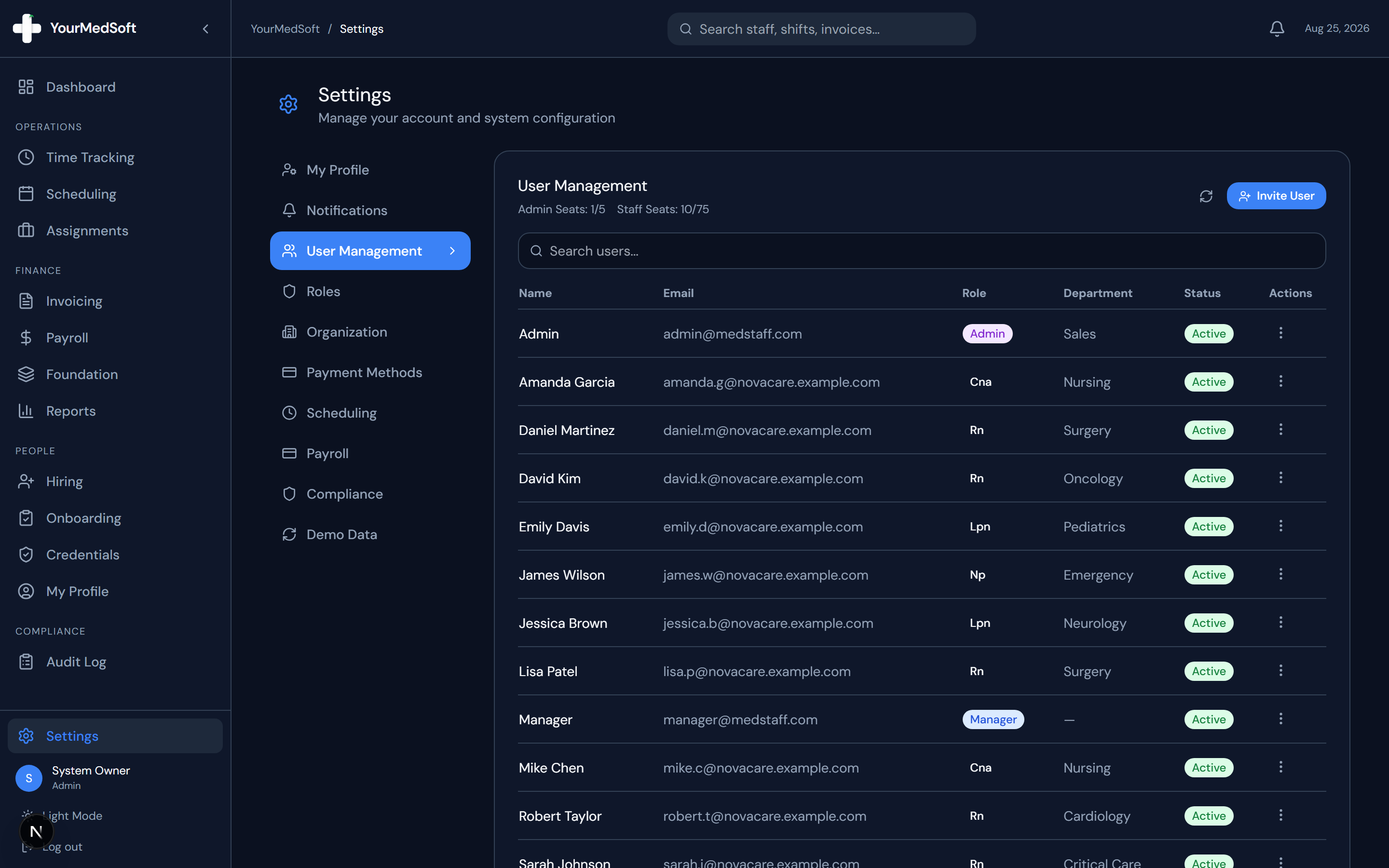
Open User Management
Go to Settings in the sidebar and select the "User Management" tab.
Click Invite User
Click the "+ Invite User" button in the upper right header.
Team member invitation modal with email and role tier selection.
Enter Email and Role
Enter the invitee’s email address and assign their initial access role (Admin, Manager, or Staff).
Send Invitation
Click "Send Invite". An email is immediately dispatched with a unique secure token link allowing the user to create their password and join your workspace.
Monitoring Invitations
Pending invites are tracked under the invitations list where you can resend or cancel pending requests at any time.
Pro-Tips & Best Practices
- Admins have full access to billing, settings, and audits. Managers can schedule and approve timesheets. Staff can view their own schedules and clock in.
Frequently Asked Questions & Troubleshooting
How does an invited user accept their invite?
They click the link in their email, which takes them to the /invite portal where they choose a password and immediately access their dashboard.
Was this guide helpful?
Your feedback helps us continuously improve our documentation.