How do I add and manage client healthcare facilities?
Register hospitals, clinics, nursing homes, and urgent care centers with addresses, contact persons, facility types, and bulk CSV import.
What You Need Before Starting
- Admin role permissions.
Step-by-Step Instructions
Open Foundation
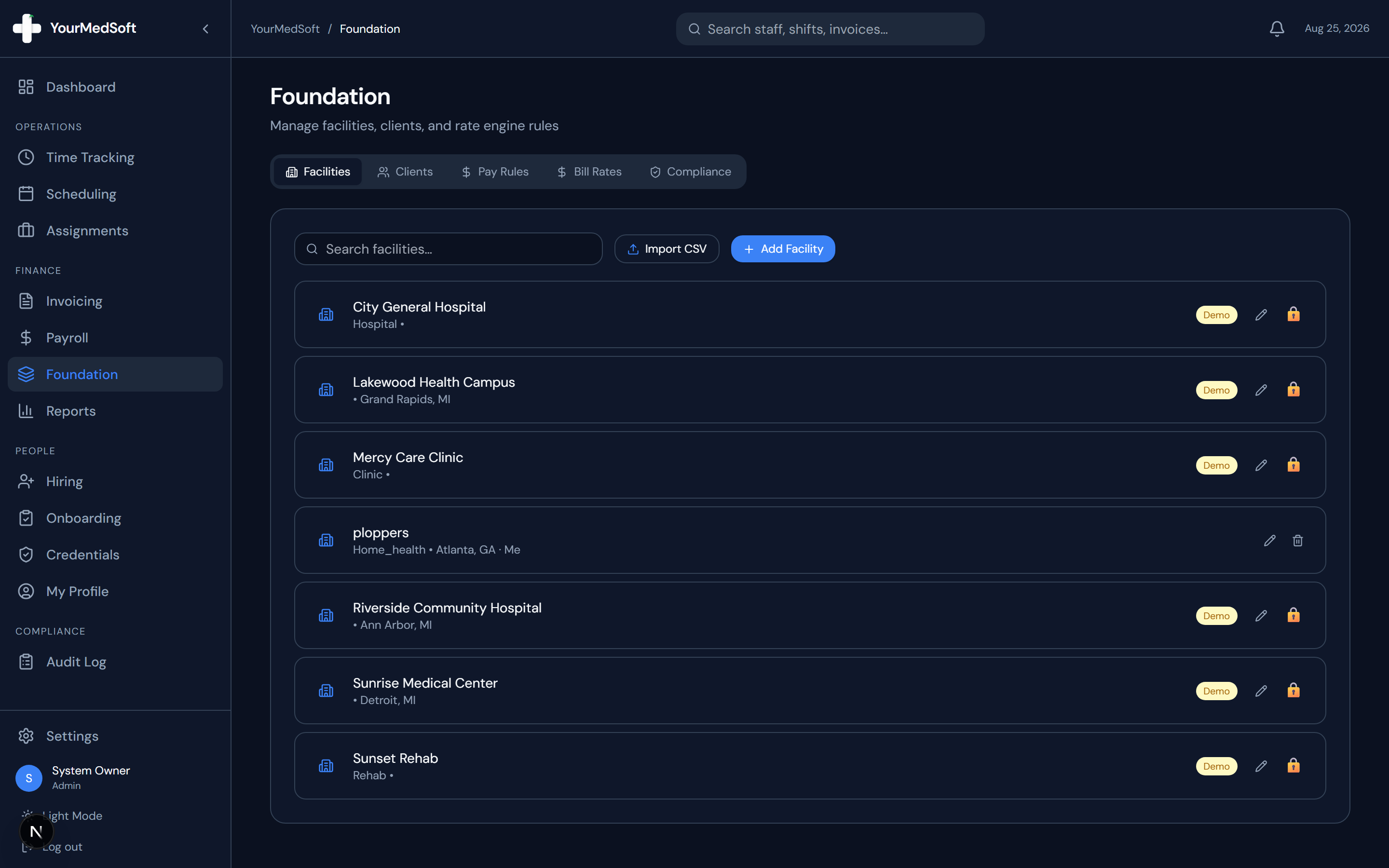
Click "Foundation" in the sidebar menu. The "Facilities" tab opens by default.
Single Facility or Batch Import
Click "+ Add Facility" to register an individual site, or click "Import CSV" to upload multiple facilities at once using our spreadsheet template.
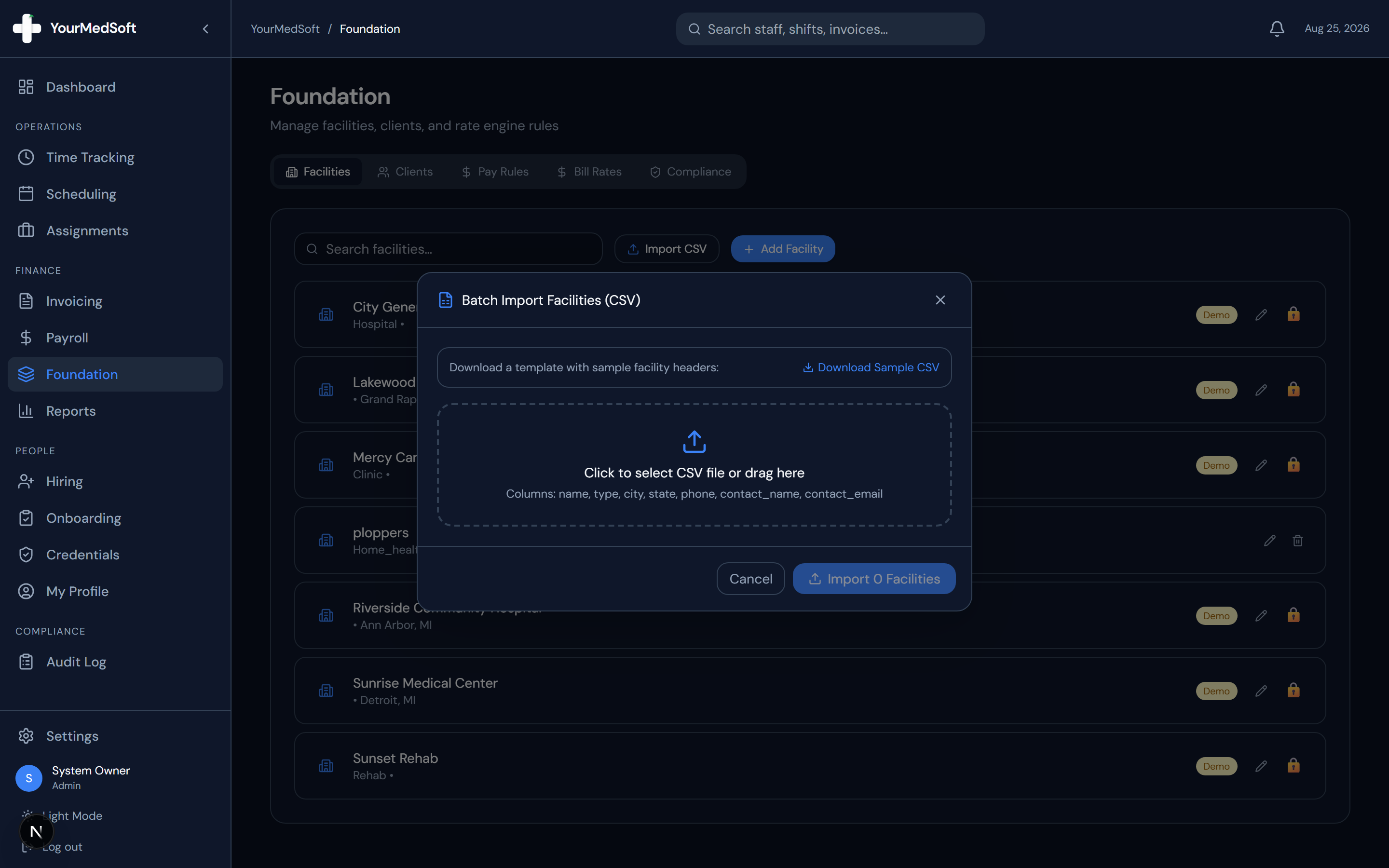
Batch Import Facilities modal with template download, column validation, and bulk import.
Fill in Facility Information
Enter the Facility Name (e.g., "St. Jude Regional Medical Center"), Facility Type (Hospital, Clinic, LTC/SNF, Urgent Care, Home Health, Telehealth, Dental, NEMT), Phone, City, and State.
Add Contact Details
Enter the primary staffing contact name and email address at the facility.
Save Facility
Click "Save" (or confirm CSV import). The facility becomes immediately selectable in scheduling, job postings, and contract placement dropdowns.
Pro-Tips & Best Practices
- You can edit facility details at any time by clicking the pencil icon next to any facility in the list.
- Use the "Download Sample CSV" link in the Batch Import modal to quickly format your hospital roster.
Frequently Asked Questions & Troubleshooting
Can I batch import 50+ hospital locations simultaneously?
Yes. Click "Import CSV" in the Facilities tab, upload your .csv file with facility columns, and review the instant data preview before saving.
Can I deactivate a facility that is no longer an active client?
Yes. Click the trash can icon on the facility row. Deactivating preserves historical shift data while removing the facility from active scheduling pickers.
Was this guide helpful?
Your feedback helps us continuously improve our documentation.