How do I use tiered dispatch to broadcast per diem open shifts?
Use the three-tier dispatch system to broadcast open per diem shifts first to core internal staff, then float pool, then open registry — filling vacancies in under 60 seconds without over-exposing rates.
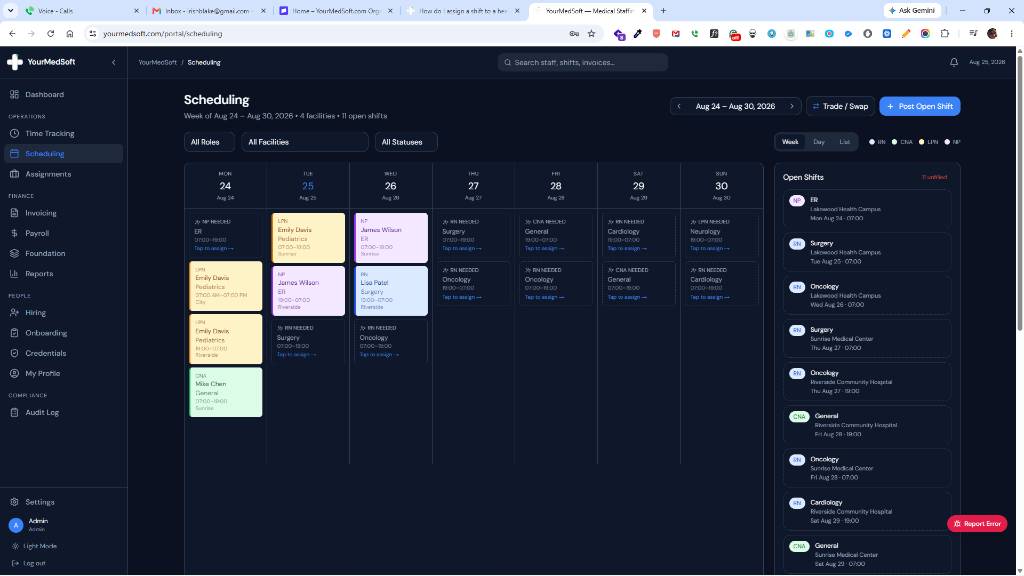
In YourMedSoft, to use tiered dispatch to broadcast per diem open shifts requires navigating to Scheduling in the portal, opening the Post Shift form, selecting a Dispatch Tier (Core Staff, Float Pool, or Open Registry), and clicking Post Shift. The system dispatches in-app notifications to the matching tier immediately.
What You Need Before Starting
- Per Diem Registry vertical enabled in Settings.
- At least one active staff member with matching clinical role and availability.
Clinical & Regulatory Compliance Standards
- Per diem staff classified as W-2 employees must receive overtime pay per FLSA if they exceed 40 hours per week across all shifts — even across multiple facilities.
- 1099 per diem contractors must not be directed or controlled as employees. Consult legal counsel on worker classification before placing registry staff.
Step-by-Step Instructions
Open the Post Shift Form
Navigate to Scheduling and click 'Post Shift' or the '+ Post Open Shift' button on the dashboard.
Set Shift Date, Time, and Facility
Fill in the shift date, start and end times, and select the target facility.
Tired of Manual Shift Texts & Phone Trees?
YourMedSoft broadcasts open shifts to hundreds of pre-vetted, compliant nurses in under 60 seconds. Eliminate double-booking and fill vacancies instantly.
Select Clinical Role
Choose the required clinical role (RN, LPN, CNA, HHA). The system filters available staff by this role when dispatching.
Choose Dispatch Tier
Select a tier using the three-button selector: Tier 1 Core Staff notifies only your primary employed staff first. Tier 2 Float Pool includes pre-vetted per diem floats and registry staff. Tier 3 Open Registry broadcasts to all credentialed, available registry nurses.
Enable Broadcast Notification
Leave 'Broadcast in-app notification to all matching active clinicians' checked. Staff matching the role and tier receive an in-app alert immediately.
Post Shift
Click 'Post Shift'. The shift is published to the calendar in Open state and alerts are dispatched to the selected tier.
Escalate Tier if Needed
If no staff claim the shift within your response window, open the shift card and click 'Escalate to Next Tier' to expand the broadcast to Tier 2 or Tier 3.
Pro-Tips & Best Practices
- Start with Tier 1 for routine per diem fills — your employed staff cost less in overtime than registry premiums.
- Use Tier 3 only after Tier 1 and Tier 2 fail. Registry nurses typically carry a bill-rate premium of 15-25%.
- For same-day fills, post with Tier 2 immediately to save time without fully opening to the open registry.
Troubleshooting & Operational Edge Cases
Issue: Broadcast sent but no staff received notifications
Operational Resolution: Check that staff profiles have Active status and have notification_push enabled. Staff who have logged out may not receive in-app alerts.
Issue: Escalate to Next Tier button is greyed out
Operational Resolution: The shift is already at Tier 3 (Open Registry) — the maximum tier. Post a secondary urgent broadcast alert instead.
Frequently Asked Questions & Troubleshooting
Can I see which clinicians were notified at each tier?
Yes. Open the shift record and click 'Dispatch Log'. It shows a timestamped list of every notification sent, which tier it went to, and whether the recipient opened the alert.
What is the difference between Tier 2 Float Pool and a full registry broadcast?
Tier 2 filters to staff flagged as Float Pool or PRN in their worker profile, keeping the broadcast tighter than a full open registry blast. This protects bill-rate information from being seen by all registry staff.
Was this guide helpful?
Your feedback helps us continuously improve our documentation.
Recommended for Shift Scheduling
Travel Nurse Assignment Contract Template
Free 13-week assignment agreement with guaranteed hours clauses and hospital floating policies.
Gross Margin & Spread Modeler
Simulate clinician bill-to-pay spreads, overtime multipliers, and statutory employer payroll burden.
Per Diem Nurse Registry Platform
Broadcast open shifts, eliminate callout delays, and enforce automated credential gates.